Before you start
Your account comes from your provider (your agent) — not a sign-up form.
Your provider does
- Open your account and give you the login.
- Choose your price plan.
- Add your balance when you pay them.
- Set up your SIP connection.
You do
- Sign in and change your password.
- Connect your phone, app or PBX.
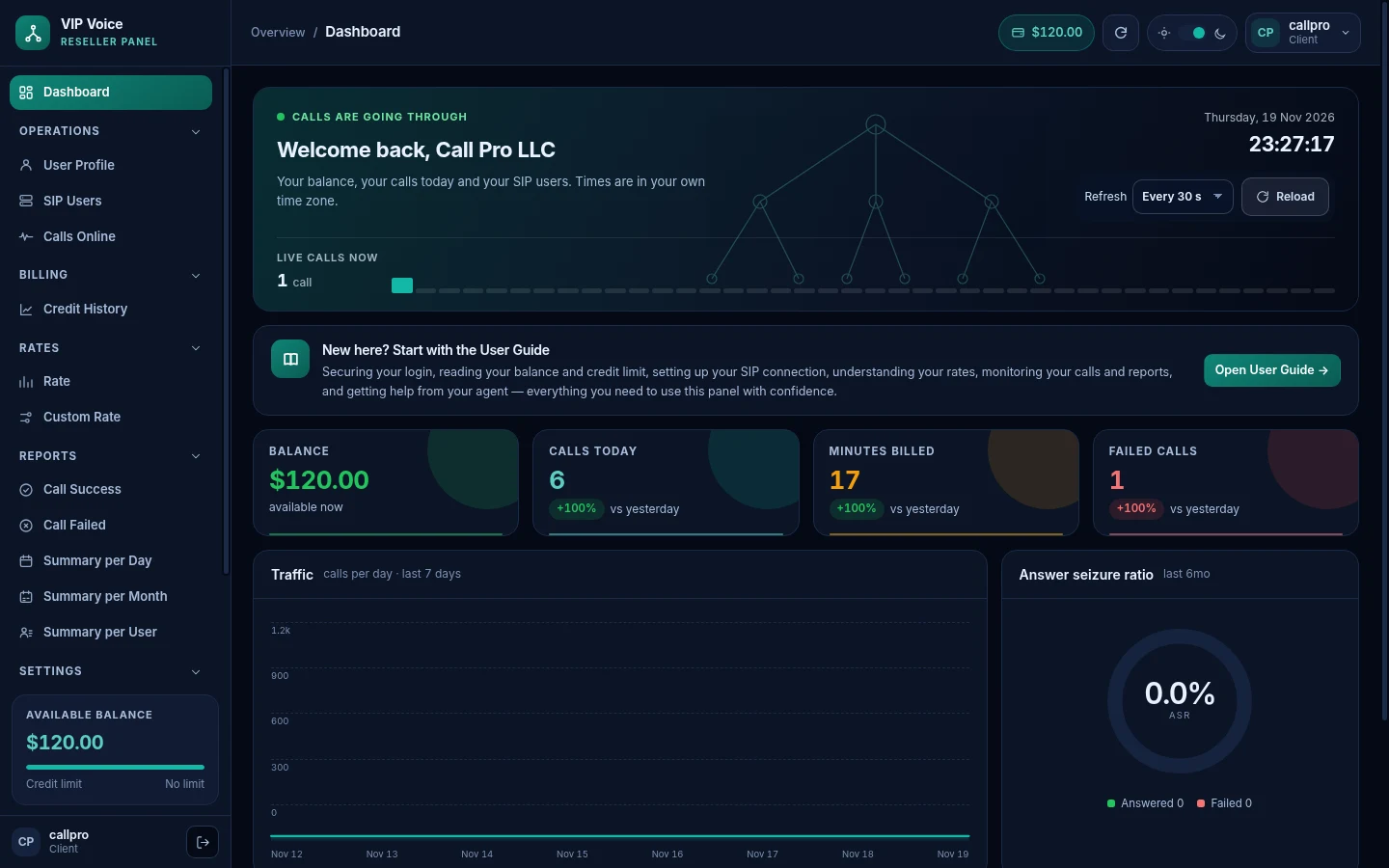
- Follow your calls, balance and prices.
- Ask your provider when you need more.
Sign in and stay safe
Use the panel address and the login your provider gave you.
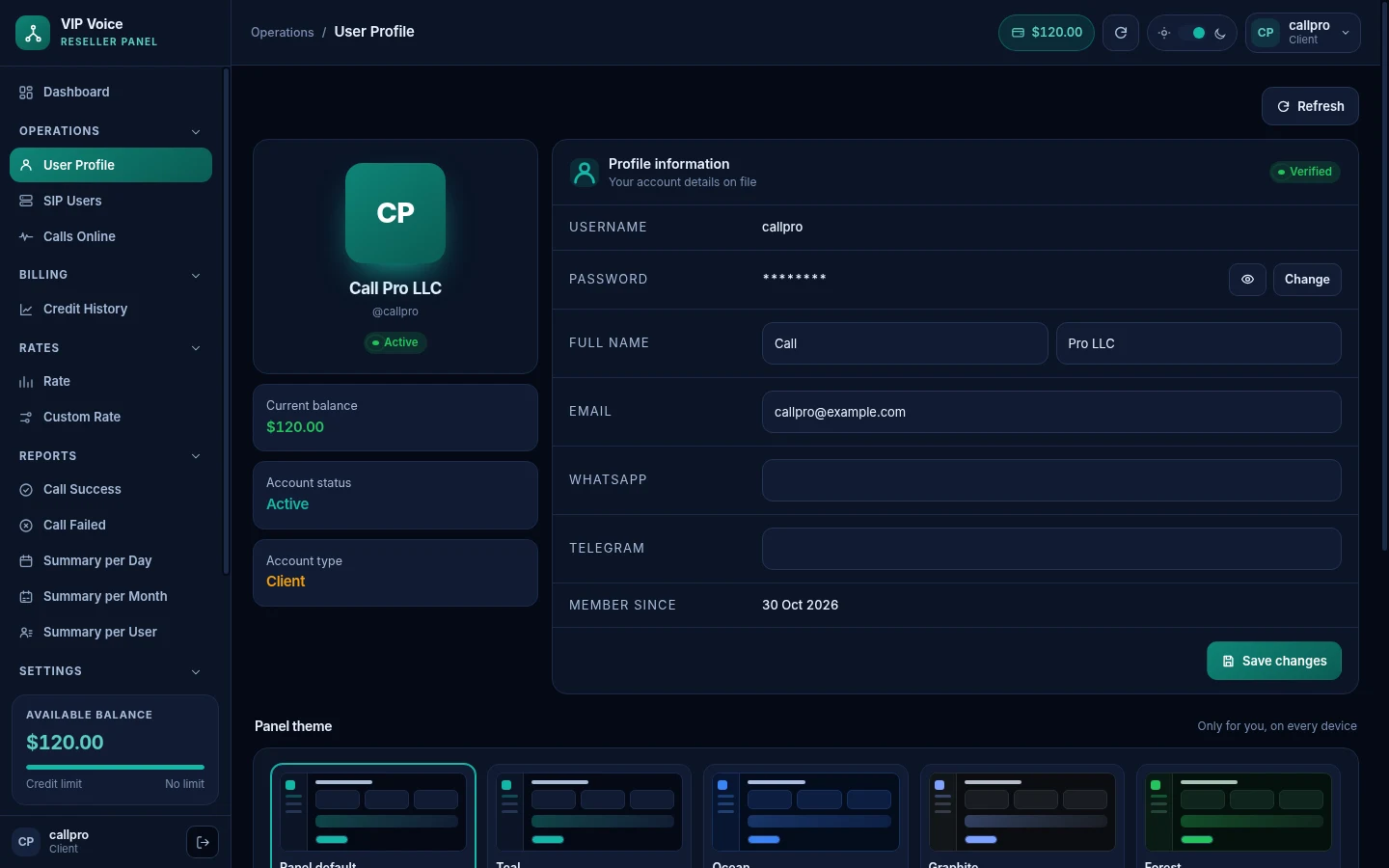
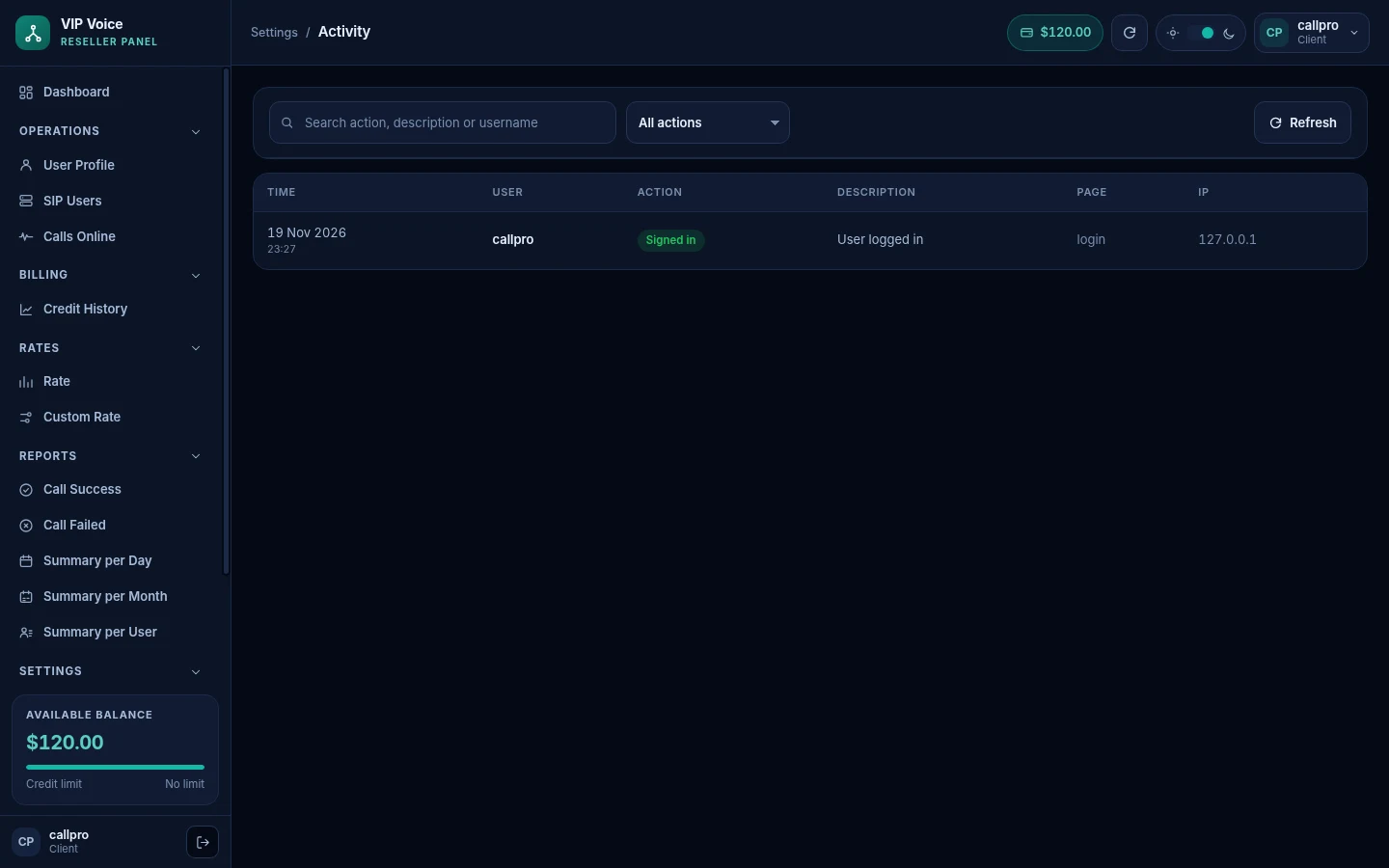
Sign-in page · User Profile · Activity- Open the panel link your provider sent you and enter your username and password exactly as given.
- Change your password at once: User Profile → Password → Change.
- Check your details — name, email, WhatsApp and Telegram — and Save changes. You can also pick your own panel theme there.
- Keep an eye on Activity — every sign-in and password change is listed with its time and IP.
A sign-in you do not recognise? Change your password and tell your provider.
Connect your phone
Four steps from download to your first call.
Operations → SIP Users3.1 Get a softphone
Any standard SIP app or PBX works. These are the ones most people use:
Zoiper, PortSIP — from the Play Store or App Store
MicroSIP, Zoiper, PortSIP
Zoiper, PortSIP
Any device with standard SIP registration
3.2 Enter your SIP details
Open SIP Users. The server and port are at the top; the eye icon shows each SIP password.
| In your app | Enter |
|---|---|
| Domain / Server | sell.suii.us — just the name, no http:// or https:// |
| Port | 5060 |
| Transport | UDP or TCP — both work |
| Username | Your SIP user, e.g. callpro01 (exactly as shown) |
| Password | The SIP password from the eye icon |
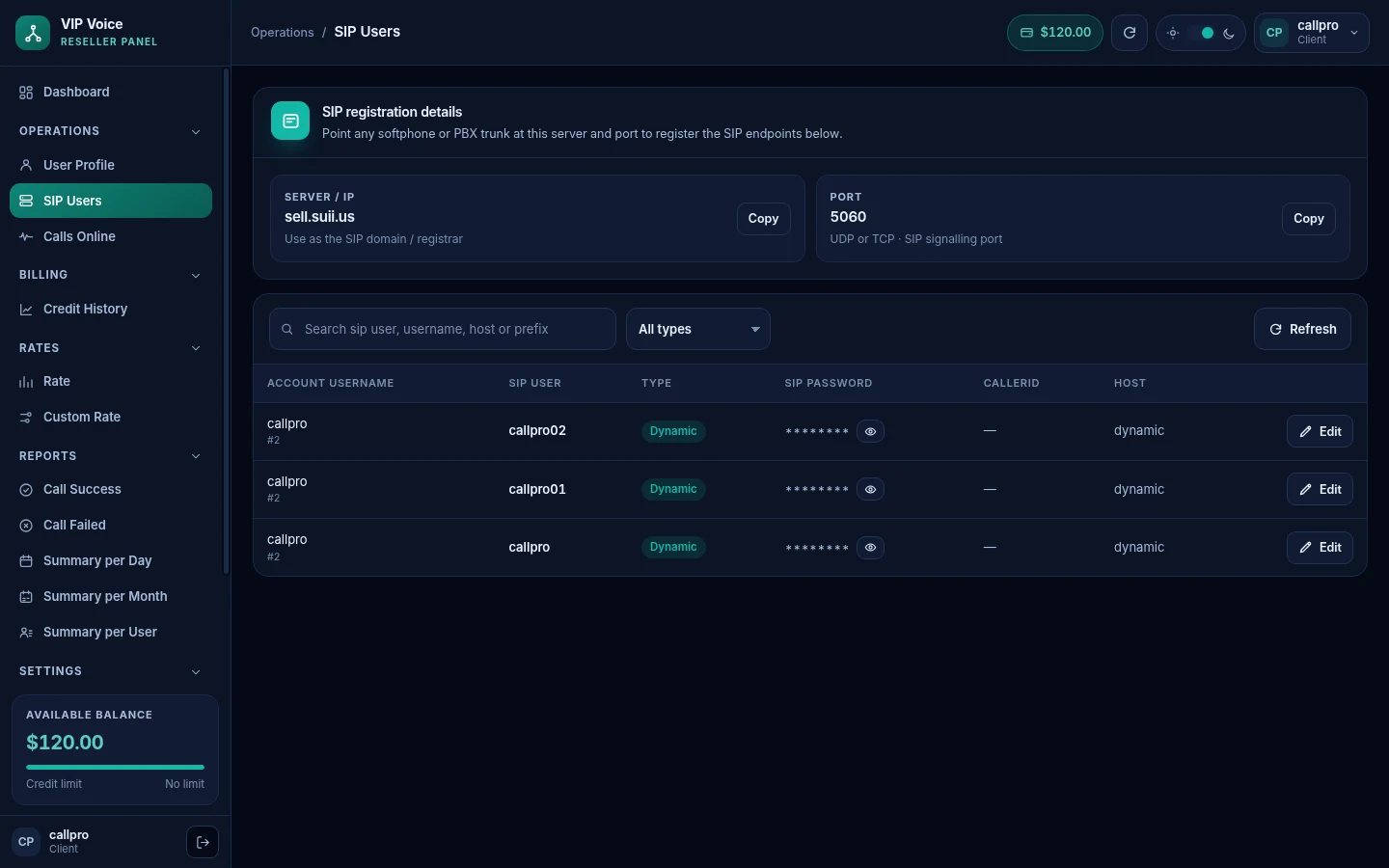
Dynamic most common
Your app signs in with the SIP user and password above — from home, office or mobile data.
IP to IP for a PBX
No password: your fixed public IP is the login. If your IP changes, ask your provider to update it, or calls are refused.
3.3 Caller ID and password
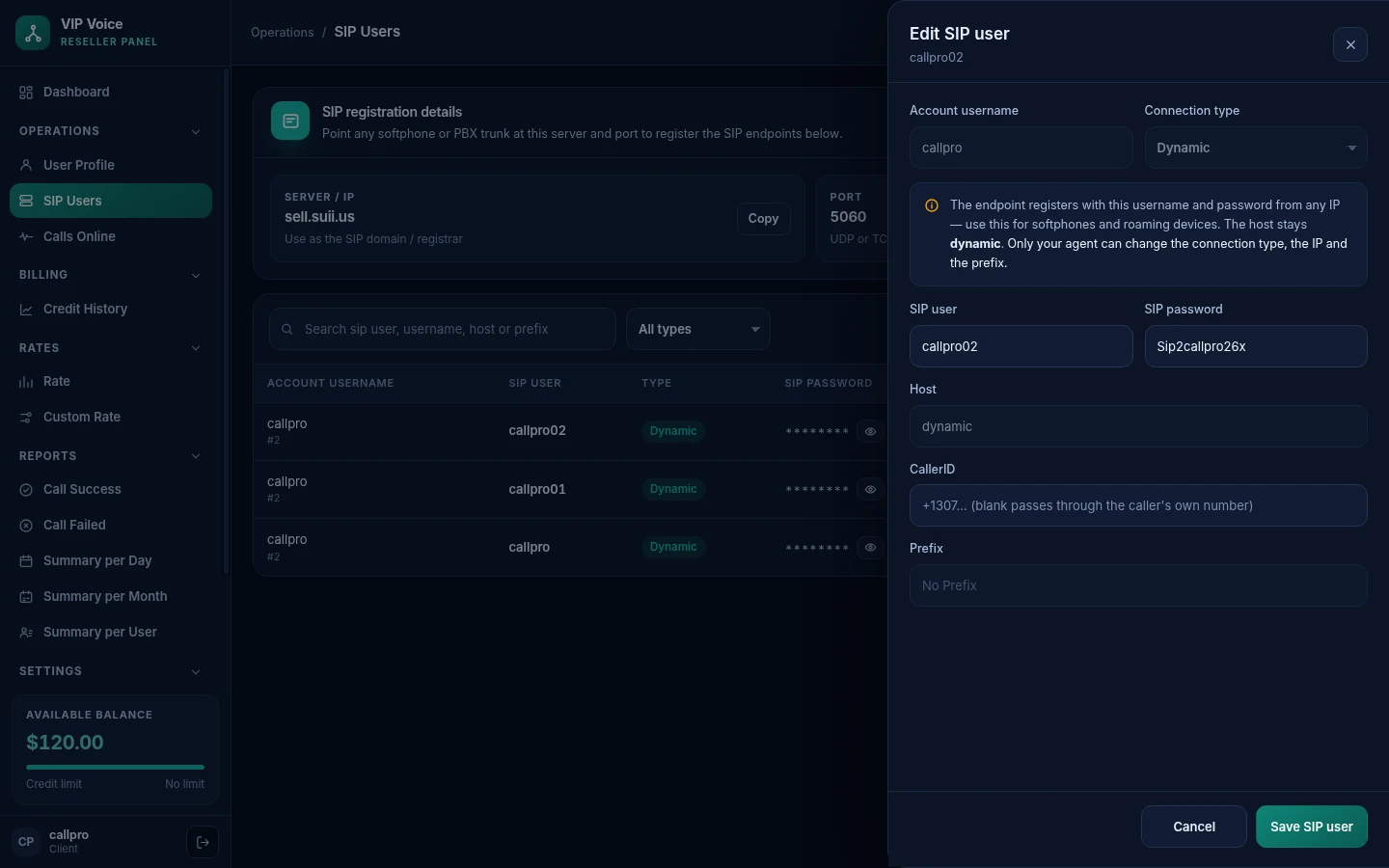
SIP Users → Edit
- CallerID — set a fixed number for every call, or leave it blank to send your phone's own number.
- Enter it as digits in full international format, e.g.
14155551234. - You can change the SIP password here too. Connection type, IP and prefix are set by your provider.
3.4 Dial the number
Country code, then the number — no spaces, usually no plus sign.
| Calling | Dial |
|---|---|
| USA / Canada | 1 + 10-digit number, e.g. 12125550142 |
| United Kingdom | 44 + number without the first 0, e.g. 447700900123 |
A call will not connect? Check the number format first, then Call Failed (step 6).
Your prices
What each call costs you — read only.
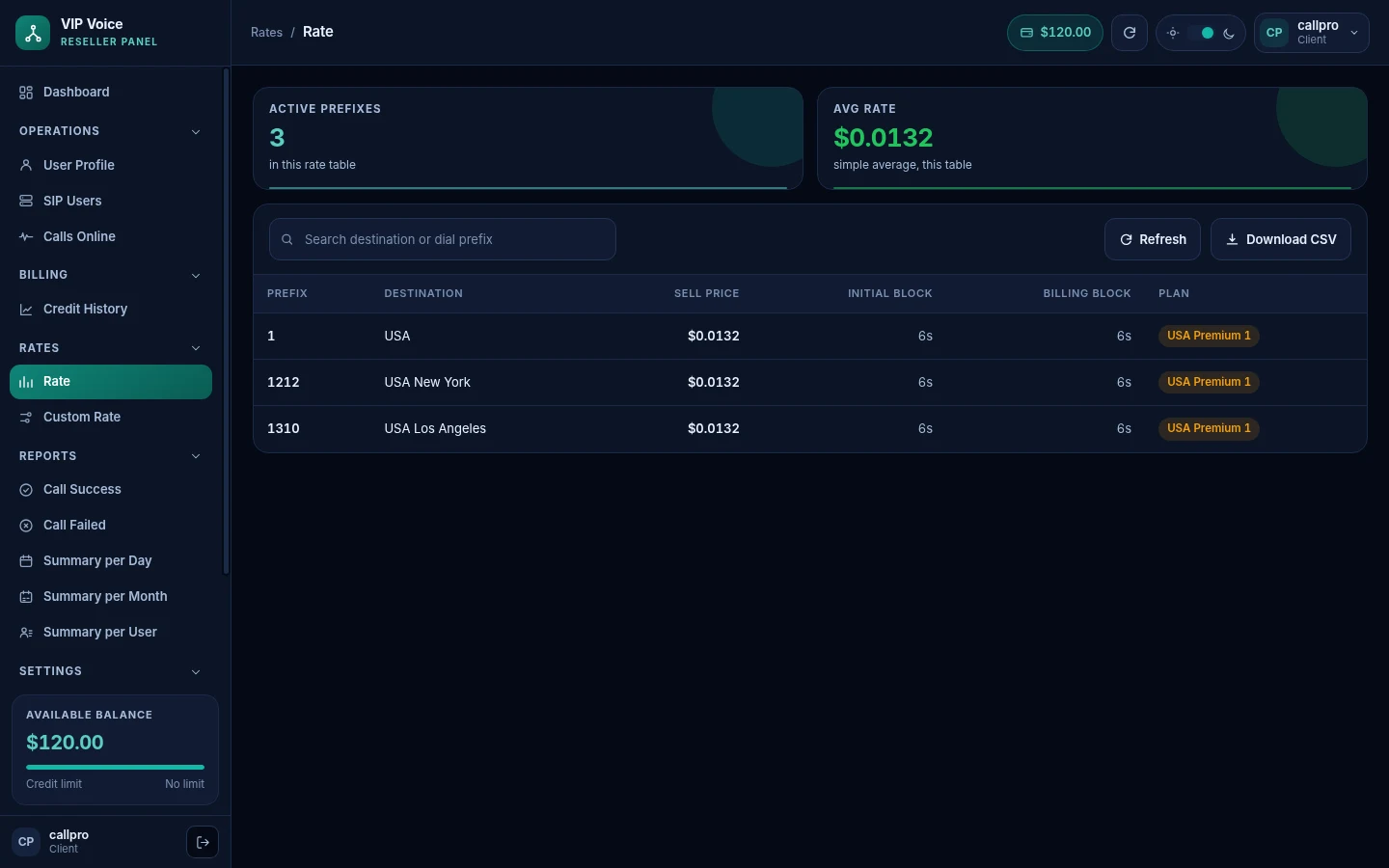
Rates → Rate · Custom RateRate
The full price list of the plan your provider gave you: the price per minute for every destination, and the billing blocks.
Custom Rate
Special prices your provider set only for you. They replace the plan price for that destination — check here first if a price looks different.
Balance and history
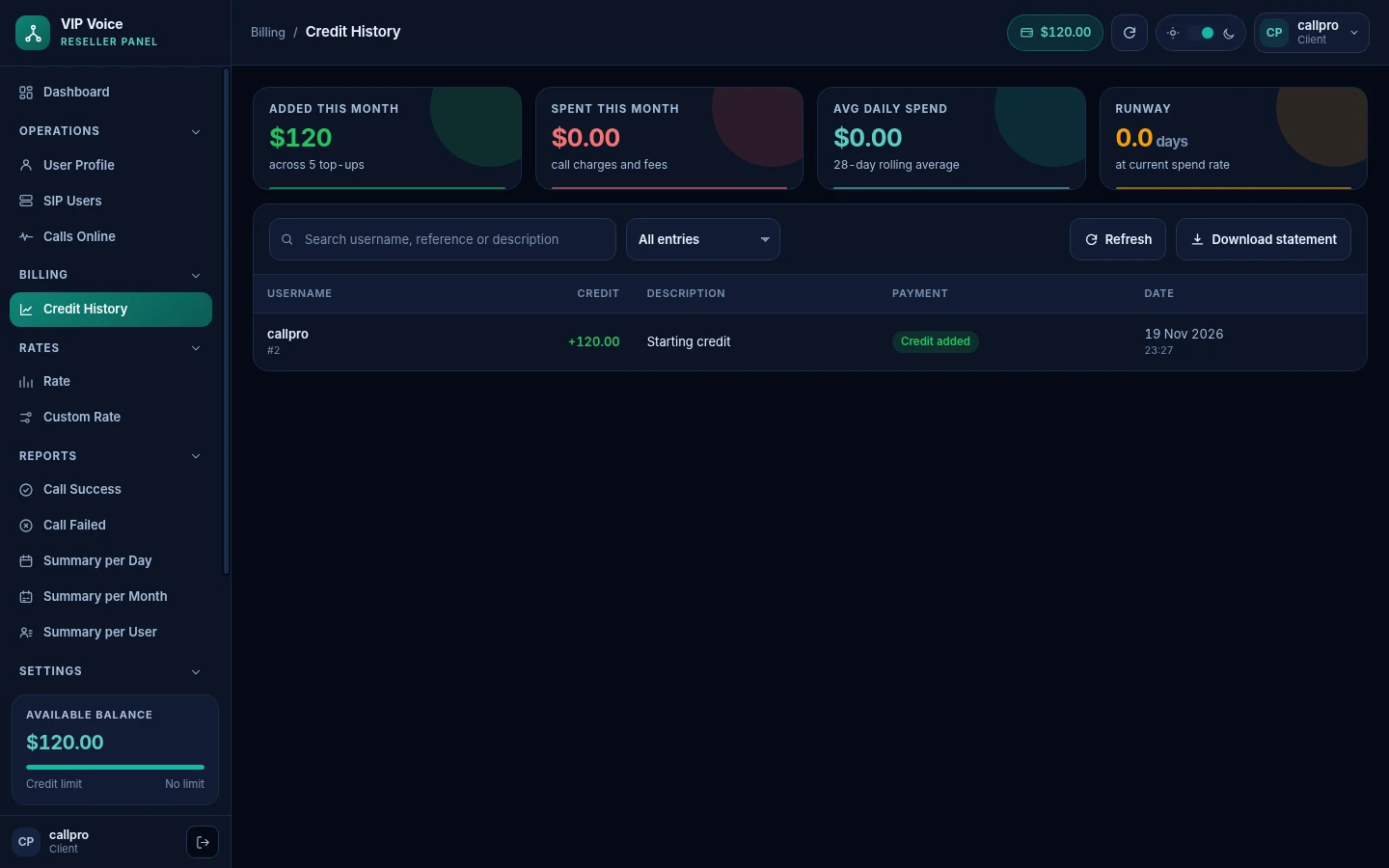
Every top-up from your provider and every adjustment.
Billing → Credit History- Your available balance is always at the top and in the side menu — live.
- Credit History lists each top-up with its date and note. Search or filter it, or download it.
- At $0 (or your credit limit) new calls stop — that is expected. Ask your provider for a top-up.
Follow your calls
Live, answered and failed — all your own.
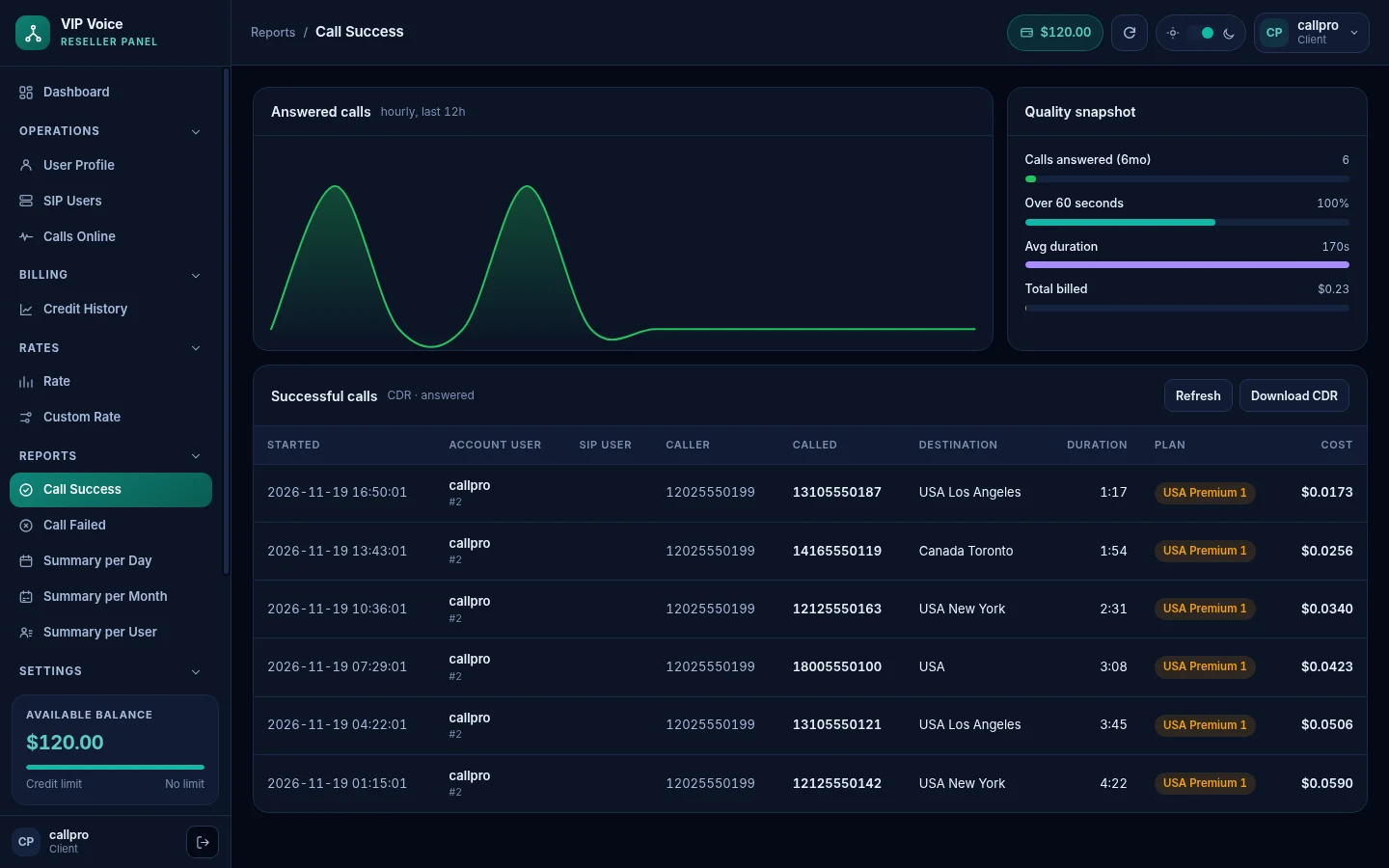
Calls Online · Call Success · Call FailedCalls Online
Every call running now on your account, refreshed every few seconds.
Call Success / Call Failed
Your answered calls with time and cost, and the calls that did not connect with the reason.
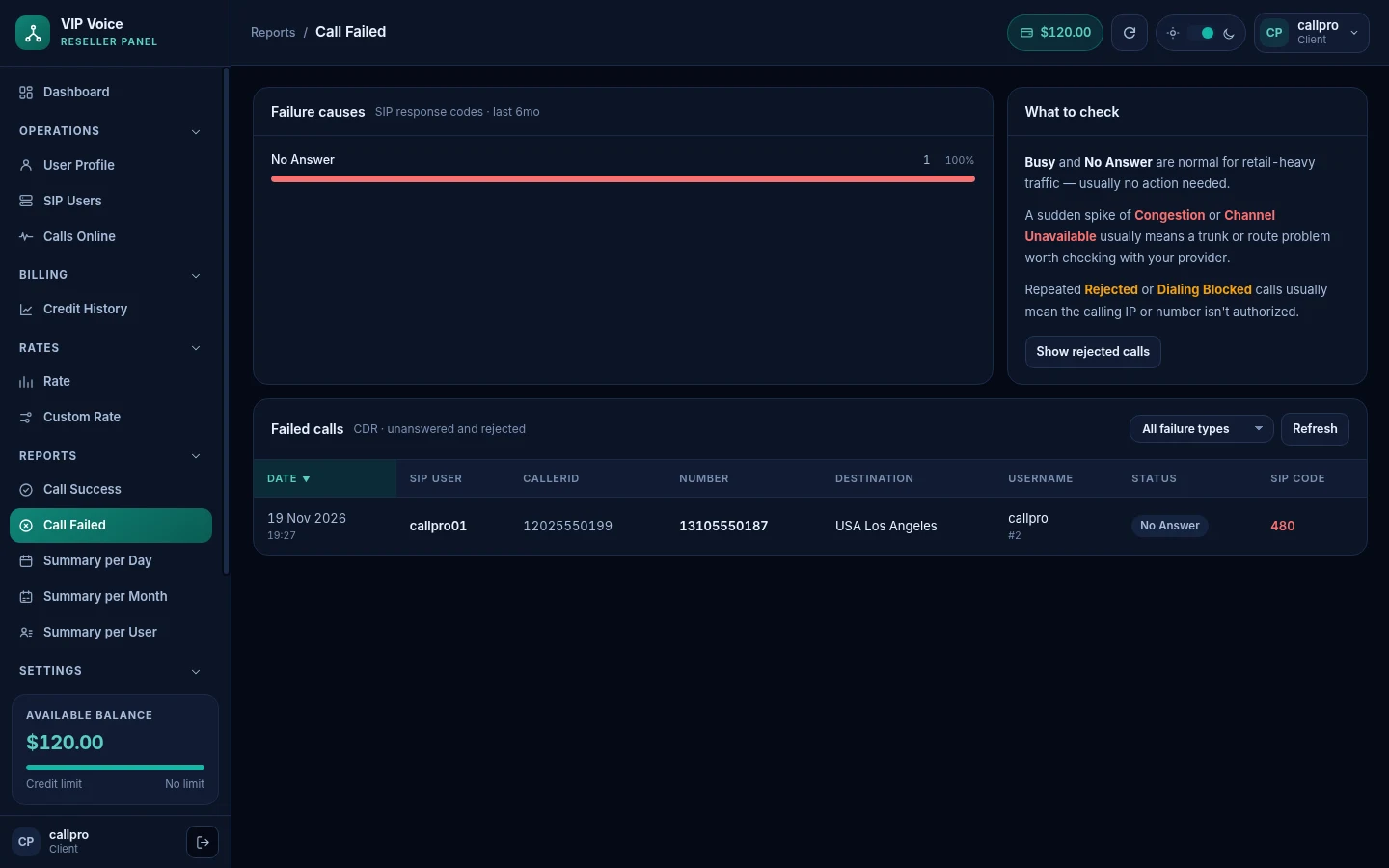
| Code | Meaning | What to do |
|---|---|---|
| 486 / 480 | Busy / no answer | Nothing — the other side did not pick up. |
| 403 | Refused | Check your SIP user and password (or your IP for IP to IP). |
| 404 | Not found | Check the number format and that the destination is in your price list. |
| 503 | Unavailable | A route problem or no balance — tell your provider. |
Usage summaries
Your totals by day, by month and by SIP user.
Reports → Summary per Day / Month / User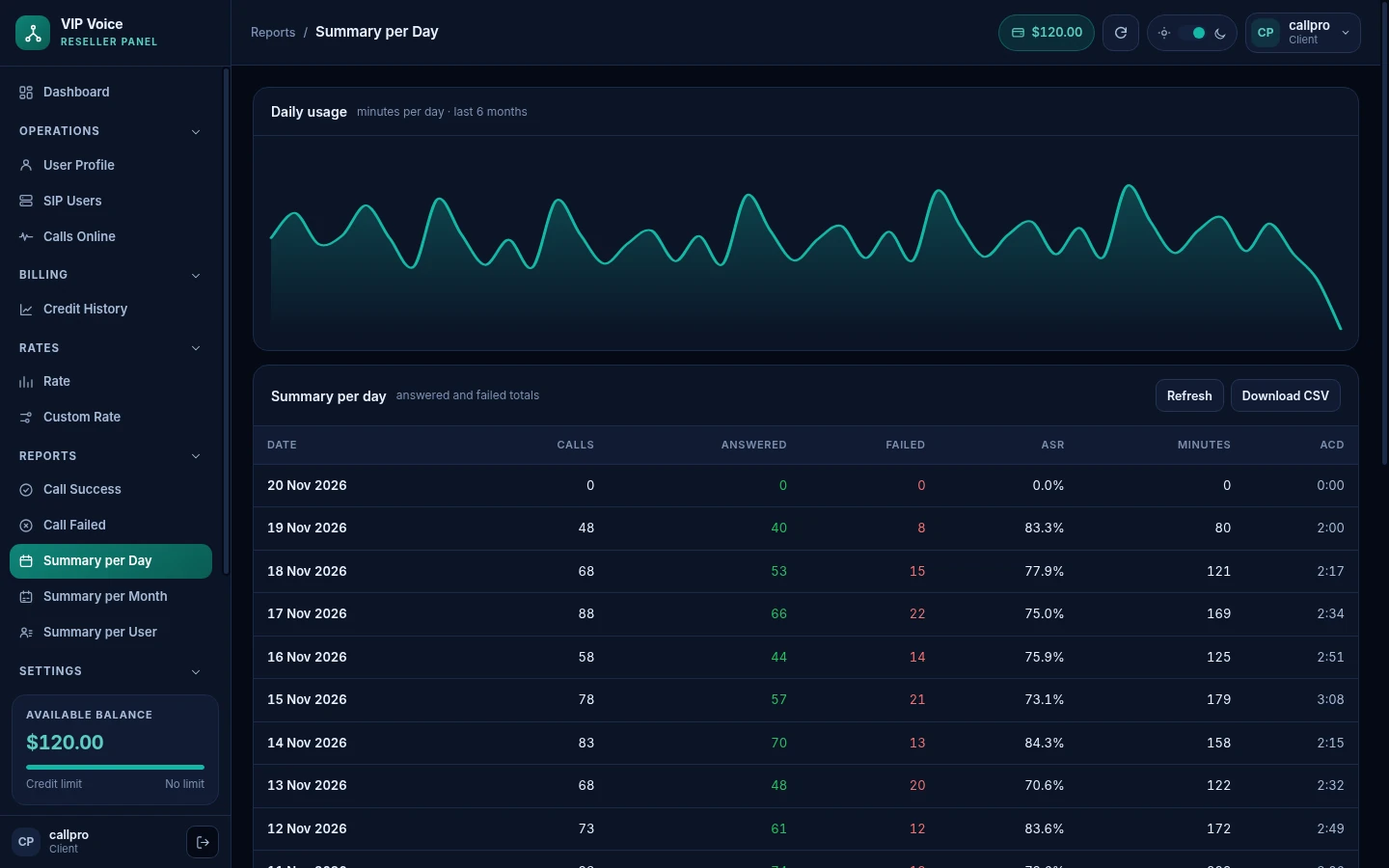
ASR
Answered calls ÷ all calls. A sudden drop is worth telling your provider.
ACD
The average length of an answered call.
Getting help
Two different doors — pick the right one.
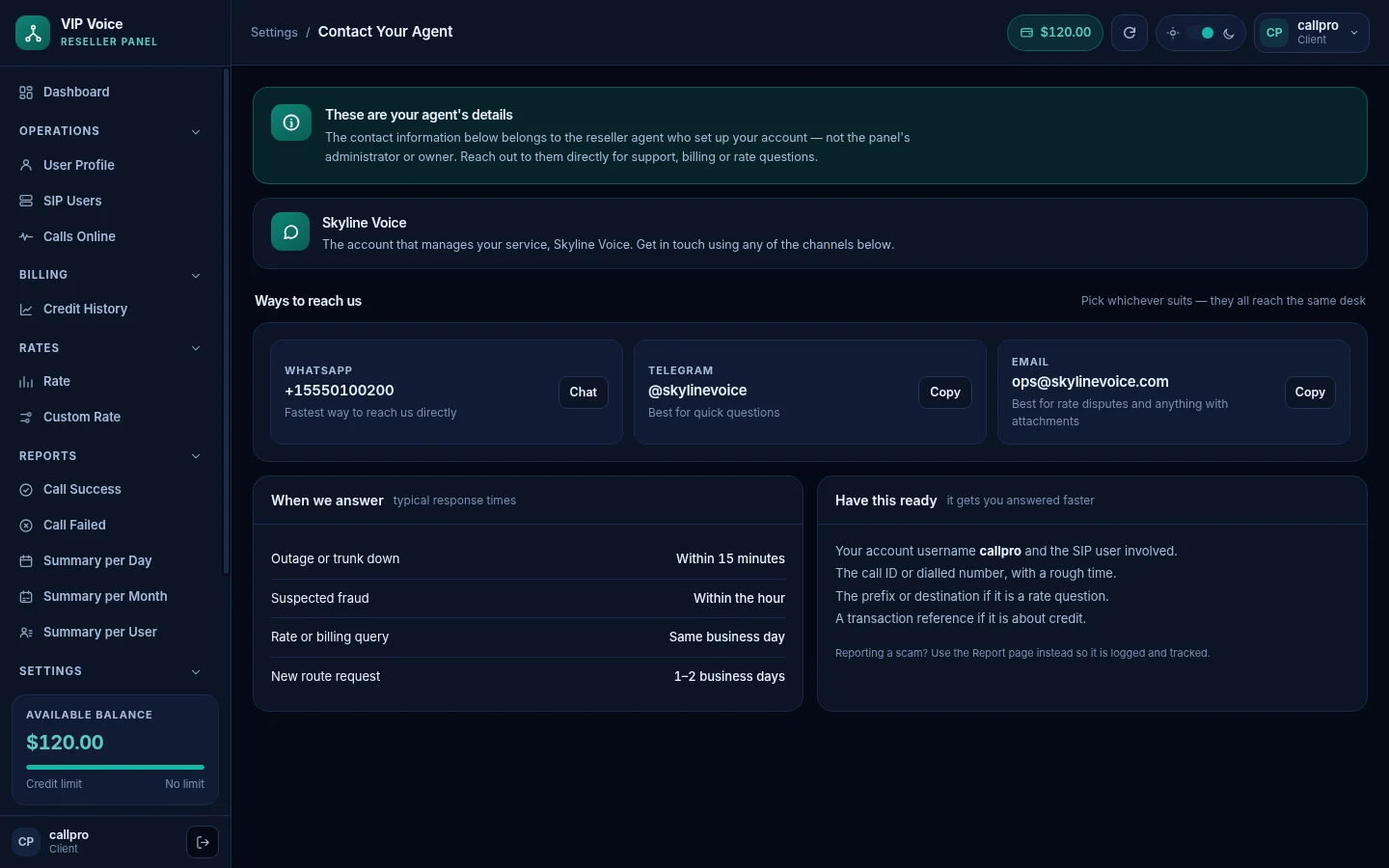
Settings → Contact Your Agent · Report to AdminContact Your Agent
Your provider's WhatsApp, Telegram and email. For top-ups, prices, a new SIP user or call quality.
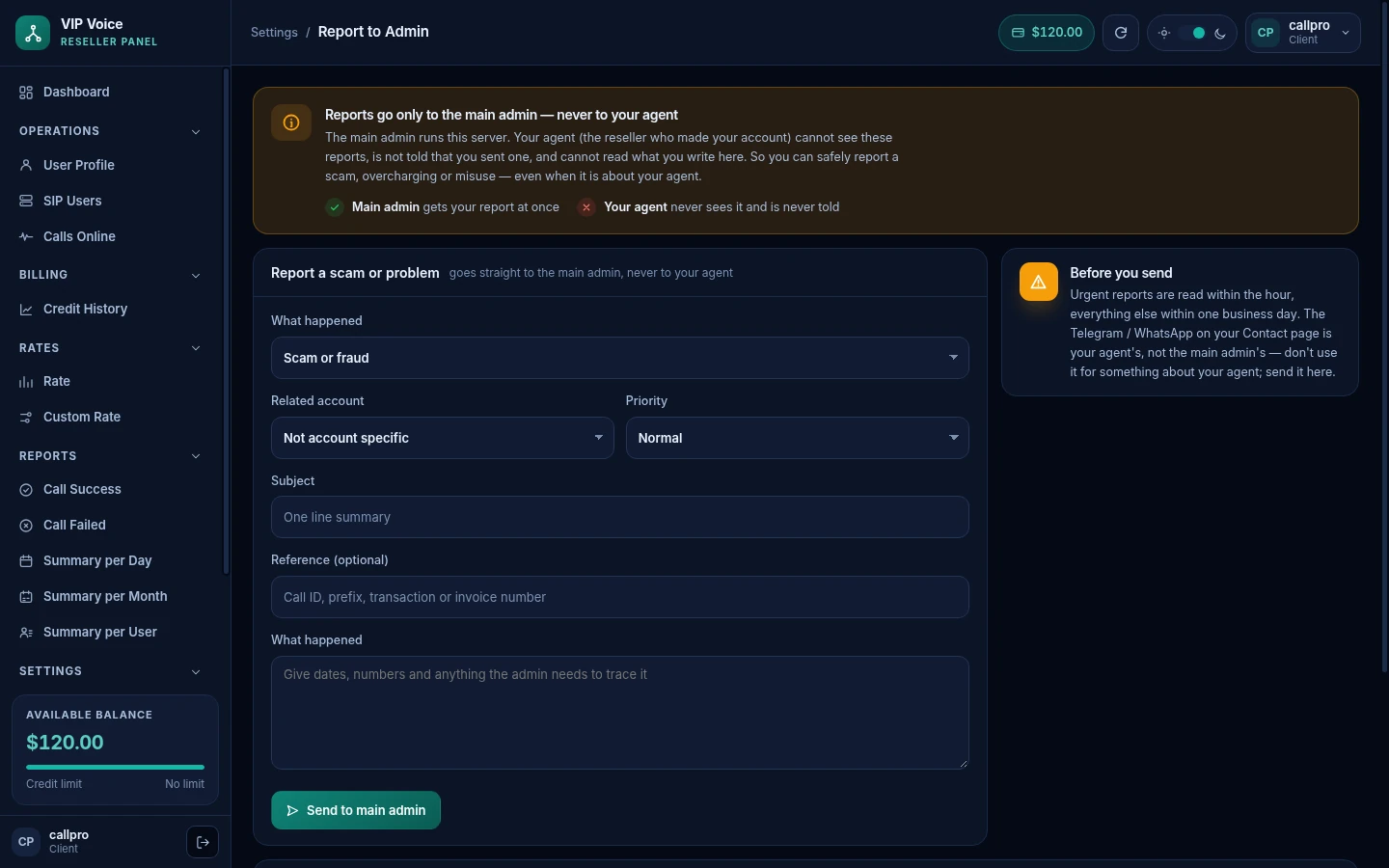
Report to Admin
Goes only to the main admin — your agent never sees it and is never told. Use it for a scam, overcharging or misuse of your account.
Security checklist
Once now, then every so often.
- Changed the password your provider gave youonce
- Checked Activity for sign-ins you do not knowweekly
- Looked at Call Failed for 403s you did not expectweekly
- Balance still fits how much you callmonthly
Quick-start checklist
From your first sign-in to your first call.
- Signed in and changed my password
- Checked my balance
- Found my SIP user and password
- Set up my softphone with sell.suii.us · 5060
- Made a test call
- Saved my provider's contact
- Opened @VIPCallsHubBot in Telegram and signed inoptional
Your account in Telegram
Check your account from your phone, without opening the panel.
Telegram → @VIPCallsHubBotOpen @VIPCallsHubBot in Telegram
- Open @VIPCallsHubBot in Telegram and tap START.
- Tap Login, send your panel username, then your password — the same ones you use here. The bot deletes what you type at once.
- You stay signed in for 60 days. Up to 3 accounts can be signed in on one Telegram — switch between them any time, or Log out.
What you can do there
See your balance and plan, your SIP users (caller ID and SIP password, as your panel allows), and your recent and failed calls.
What stays in the panel
Prices, history, reports and settings. Top-ups still come from your provider.